Do you use WordPress to manage your website? Want some handy shortcuts that will save time and make life easier?
If you log in and amend your site every day you’ll find certain repetitive tasks can make things take longer than they should. With these shortcuts you can save yourself time managing your website and spend more time running your business.
Infographic brought to you by The Marketing Robot.
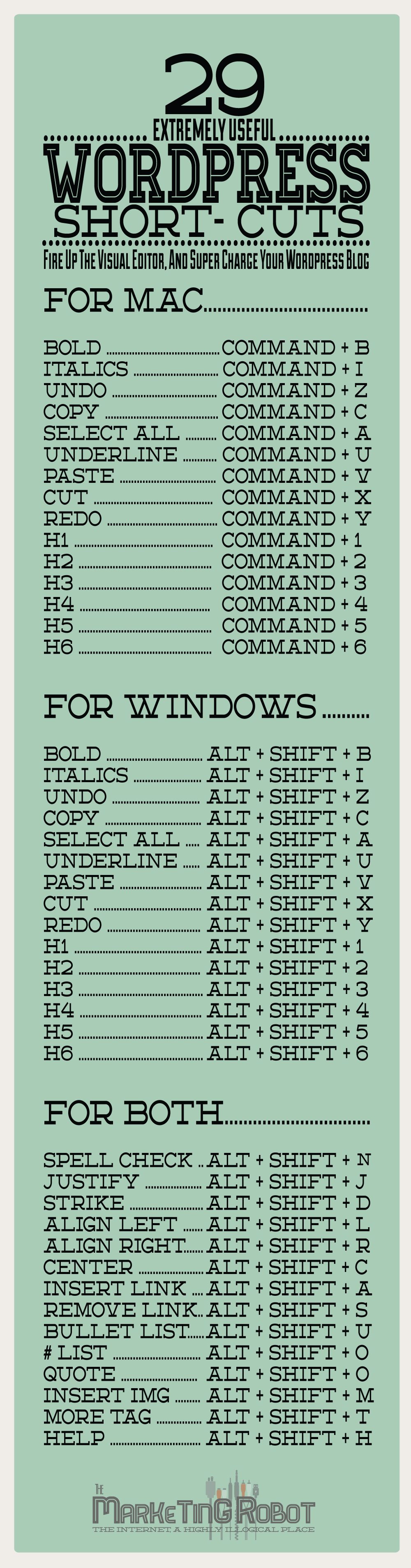
WordPress is one of the most popular content management systems (CMS) in the world, powering millions of websites and blogs. It’s known for its flexibility and user-friendly interface, but like any tool, there are ways to make your experience even smoother. That’s where keyboard shortcuts come in. In this blog post, we’ll explore 29 extremely useful WordPress shortcuts that will save you time and make managing your website a breeze.
1. Ctrl + C (or Command + C on Mac) – Copy This basic shortcut is a time-saver in WordPress, just like in any other application. Use it to copy text, images, or any other content within the WordPress editor.
2. Ctrl + X (or Command + X on Mac) – Cut Cutting text or elements from your WordPress editor is just as important as copying them. This shortcut lets you quickly remove content and move it elsewhere.
3. Ctrl + V (or Command + V on Mac) – Paste After copying or cutting content, use Ctrl + V to paste it where you want it to appear within your post or page.
4. Ctrl + Z (or Command + Z on Mac) – Undo Made a mistake? Don’t worry; Ctrl + Z is your best friend. It allows you to undo your last action within the editor.
5. Ctrl + Y (or Command + Y on Mac) – Redo If you’ve undone something but now want it back, Ctrl + Y (or Command + Y) will redo your last action.
6. Ctrl + S (or Command + S on Mac) – Save Frequently saving your work is essential. This shortcut ensures you save your progress without having to reach for the mouse.
7. Ctrl + A (or Command + A on Mac) – Select All Select all the content within your editor with Ctrl + A, making it easy to copy, cut, or format everything at once.
8. Ctrl + B (or Command + B on Mac) – Bold To make text bold, select it and press Ctrl + B (or Command + B). It’s a simple way to emphasize important information.
9. Ctrl + I (or Command + I on Mac) – Italic Italicize selected text by pressing Ctrl + I (or Command + I). This is handy for emphasizing text without making it bold.
10. Ctrl + U (or Command + U on Mac) – Underline Underlining text can also be important for emphasis or differentiation. Use Ctrl + U (or Command + U) to apply or remove underlines.
11. Ctrl + 1 – Heading 1 Quickly apply Heading 1 formatting to selected text with Ctrl + 1. This is useful for creating main headings within your content.
12. Ctrl + 2 – Heading 2 Heading 2 is a common format for subheadings. Apply it with Ctrl + 2 to structure your content effectively.
13. Ctrl + 3 – Heading 3 Heading 3 is a smaller subheading format. Use Ctrl + 3 to create a hierarchical structure in your content.
14. Ctrl + 4 – Heading 4 For even smaller subheadings or additional layers of hierarchy, apply Heading 4 with Ctrl + 4.
15. Ctrl + 5 – Heading 5 Heading 5 is a rarely used format but can be handy for certain types of content. Apply it with Ctrl + 5.
16. Ctrl + 6 – Heading 6 Heading 6 is the smallest heading format. Use Ctrl + 6 for fine-grained structure within your content.
17. Ctrl + Shift + L (or Command + Option + L on Mac) – Align Left Align selected text or elements to the left with this shortcut. It’s especially useful for formatting content within your posts or pages.
18. Ctrl + Shift + C (or Command + Option + C on Mac) – Center Align Center-align text or elements with Ctrl + Shift + C. It’s perfect for creating visually appealing content.
19. Ctrl + Shift + R (or Command + Option + R on Mac) – Align Right Align selected content to the right of your editor with Ctrl + Shift + R.
20. Ctrl + Shift + J (or Command + Option + J on Mac) – Justify For a clean and polished look, justify text or elements with Ctrl + Shift + J. It ensures even spacing between words.
21. Alt + Shift + 1 – Bulleted List Create bulleted lists quickly by selecting text and pressing Alt + Shift + 1. Lists are a great way to organize information.
22. Alt + Shift + 2 – Numbered List Numbered lists provide a structured format for your content. Use Alt + Shift + 2 to create them effortlessly.
23. Alt + Shift + 5 – Strikethrough Sometimes, you may want to indicate that certain content has been removed or is no longer relevant. Use Alt + Shift + 5 to apply strikethrough formatting.
24. Alt + Shift + D – Distraction-Free Writing Mode Maximize your focus on writing by entering Distraction-Free Writing Mode with Alt + Shift + D. This mode hides unnecessary elements on the screen.
25. Alt + Shift + T – Insert Read More Tag When you want to truncate a post’s content on your blog’s homepage, use Alt + Shift + T to insert the “Read More” tag.
26. Alt + Shift + P – Insert Page Break Tag For multi-page articles or documents, use Alt + Shift + P to insert a page break tag, separating content onto different pages.
27. Alt + Shift + N – Insert Page Jump Page jumps are helpful for long articles with multiple sections. Use Alt + Shift + N to insert a page jump and allow readers to navigate easily.
28. Alt + Shift + M – Insert Media Quickly insert media files like images or videos into your posts or pages with Alt + Shift + M.
29. Alt + Shift + L – Insert Link Adding hyperlinks to your content is essential. Use Alt + Shift + L to insert links quickly, improving your website’s user experience.
Conclusion
Keyboard shortcuts are powerful tools that can significantly improve your WordPress experience. These 29 shortcuts will save you time and make managing your WordPress site more efficient. Whether you’re a seasoned WordPress user or just starting, incorporating these shortcuts into your workflow will make your life as a WordPress website owner or blogger much easier. So, start using these shortcuts today and watch your productivity soar as you navigate and create content in WordPress with ease.

Author:
Mark Ford