Are you looking for ways to improve security on your WordPress website? Want to learn how to keep website hackers at bay?
iThemes share their WordPress security tips in the following infographics.
Here’s what they cover:
- Ways to secure your WordPress website
- Simple rules for WordPress login security
- WordPress security vulnerabilities
- Common WordPress security issues
- Brute force attacks
Check out the infographic for more detail.

WordPress is one of the most popular content management systems (CMS) globally, powering millions of websites. However, its popularity also makes it a prime target for hackers and malicious attacks. To ensure the safety and security of your WordPress website, it’s crucial to implement proper security measures.
In this infographic, iThemes discuss five effective ways to secure your WordPress website and protect it from potential threats.

Keep your WordPress software up to date
One of the most important steps in securing your WordPress website is to keep the software up to date. WordPress regularly releases updates that address security vulnerabilities and bugs. By staying on top of these updates, you ensure that your website is protected against the latest threats.
Enable automatic updates for minor releases, but for major updates, it’s best to test them in a staging environment before applying them to your live site.

Use strong passwords
A strong password is your first line of defence against unauthorized access. Many hackers use brute-force attacks to crack weak passwords and gain control of your website. To create a strong password, use a combination of uppercase and lowercase letters, numbers, and special characters.
Avoid using common words or phrases, as they are easy to guess. Additionally, consider using a password manager to generate and store unique passwords for all your accounts.

Use two-factor authentication
Two-factor authentication (2FA) provides an extra layer of security by requiring users to provide a second form of identification, typically a unique code generated by a mobile app or sent via SMS.
Even if someone manages to obtain your password, they won’t be able to access your account without the second authentication factor. Numerous plugins are available for WordPress that can easily enable 2FA for your website, such as Google Authenticator or Duo Two-Factor Authentication.

Run malware scans
Regularly scanning your WordPress website for malware is essential for detecting and removing any malicious code that could compromise its security. Malware can be introduced through vulnerable plugins, themes, or even through file uploads.
Utilize security plugins like Wordfence or Sucuri to conduct comprehensive scans. These plugins can also provide real-time monitoring and firewall protection, blocking suspicious activities before they cause harm.

Take backups
No security measure is 100% foolproof, so it’s crucial to have backups of your website in case of emergencies. Regularly backing up your WordPress site ensures that you can restore it to a previous state if it gets hacked or experiences a critical failure.
There are various backup solutions available, including plugins like UpdraftPlus and BackupBuddy. Store your backups securely in an off-site location or a cloud storage service like Dropbox or Google Drive.

Protecting your WordPress login is crucial to safeguarding your website and its data from unauthorized access.
In this infographic, iThemes discuss five simple rules for WordPress login security that can help fortify your website against potential threats.
Use Strong Passwords
One of the fundamental steps in securing your WordPress login is using strong passwords. A strong password is lengthy, complex, and includes a combination of uppercase and lowercase letters, numbers, and special characters.
Avoid using common passwords like “password123” or personal information such as your name or birthdate. Additionally, it’s advisable to change your password regularly to minimize the risk of being compromised.

Use a Unique Password for Every Account
Reusing passwords across multiple accounts is a common mistake that can have serious consequences. If a hacker manages to crack or obtain one of your passwords, they can potentially gain access to all your accounts.
Therefore, it is essential to use a unique password for your WordPress login and every other online account you have. Managing multiple passwords might seem daunting, but password managers like LastPass or Dashlane can securely store and generate strong passwords for you.

Limit Failed Login Attempts
Brute force attacks, where hackers use automated tools to guess passwords by trying various combinations, are a significant threat to WordPress login security. Limiting failed login attempts is an effective way to mitigate this risk.
By default, WordPress allows unlimited login attempts, but you can enhance security by implementing plugins such as Login LockDown or Jetpack that restrict the number of failed login attempts from a single IP address.
This ensures that after a certain number of failed attempts, the IP address is temporarily blocked, preventing further login attempts.

Limit Outside Authentication Attempts
Along with limiting failed login attempts, it is also important to restrict outside authentication attempts. WordPress allows users to log in using various methods, including email and social media accounts.
While these methods can simplify the login process, they also introduce potential vulnerabilities. To enhance security, consider disabling outside authentication methods that you don’t actively use or require.
By limiting the number of potential entry points, you reduce the risk of unauthorized access to your WordPress site.
Use Two-Factor Authentication
Two-factor authentication (2FA) adds an extra layer of security to your WordPress login process. With 2FA enabled, users are required to provide an additional piece of information, typically a temporary code generated on their mobile device, along with their username and password.
This ensures that even if someone manages to obtain your login credentials, they won’t be able to access your account without the second factor. Numerous plugins, such as Google Authenticator or Authy, offer easy implementation of 2FA for WordPress websites, strengthening your login security.

While WordPress offers a wide range of features and flexibility, it also faces security vulnerabilities that can put your website at risk.
In this infographic, iThemes explore the top 5 WordPress security vulnerabilities and discuss how you can mitigate them to protect your website.
Poor Hosting
Choosing the right hosting provider is crucial for the security of your WordPress website. Poor hosting services often lack robust security measures and fail to keep their servers updated, leaving your website vulnerable to attacks.
Shared hosting, in particular, can be risky as it means sharing server resources with other websites, making your site susceptible to attacks if a neighbouring site is compromised.
To safeguard your website, opt for a reputable hosting provider that offers security features such as firewalls, malware scanning, regular backups, and automatic software updates. Managed WordPress hosting services are specifically tailored to WordPress sites and provide enhanced security measures, giving you peace of mind.
Your WordPress Login
The login page of your WordPress website is a common target for brute-force attacks, where hackers attempt to gain unauthorized access by guessing your username and password. Weak or easily guessable login credentials make your site an easy target.
To strengthen your login security, follow these best practices:
- Choose a unique username and avoid using “admin” as it is the default username for many installations.
- Create strong, complex passwords that include a mix of uppercase and lowercase letters, numbers, and special characters.
- Enable two-factor authentication (2FA) to add an extra layer of security. This requires a second form of verification, such as a code sent to your mobile device, in addition to your password.
Implementing these measures will significantly reduce the risk of unauthorized access to your WordPress site.

Outdated Software
Running outdated versions of WordPress, themes, and plugins is one of the most common security vulnerabilities. Hackers actively search for known vulnerabilities in older versions and exploit them to gain control of your website.
To keep your WordPress site secure, follow these steps:
- Regularly update your WordPress core, themes, and plugins to the latest versions. Enable automatic updates whenever possible.
- Remove any unused themes and plugins from your site as they can also pose security risks.
- Choose themes and plugins from reputable sources that provide regular updates and have positive user reviews.
By staying up-to-date with the latest software releases, you can protect your website from known vulnerabilities and ensure that you have the latest security patches installed.

PHP Exploits
WordPress is built on PHP, a popular scripting language that powers dynamic web applications. However, if not properly secured, PHP can become a vulnerability in your WordPress site.
To mitigate PHP-related security risks:
- Keep your PHP version up to date. Older versions may have known vulnerabilities that can be exploited by attackers.
- Disable the display of PHP error messages on your live site. Error messages can reveal sensitive information that hackers can use to exploit your website.
- Limit the use of plugins and themes that rely on outdated or unsupported PHP libraries, as they can introduce security vulnerabilities.
Regularly monitoring and updating your PHP version, along with following coding best practices, will help minimize the risk of PHP exploits in your WordPress site.

Installing Software from Untrusted Sources
One common mistake that website owners make is downloading themes and plugins from untrusted sources. These unofficial sources may include malicious code or hidden backdoors that can compromise your website’s security.
To protect your site from this vulnerability:
- Download themes and plugins only from trusted marketplaces, such as the official WordPress repository or reputable commercial vendors.
- Verify the reputation and credibility of the developer or company before installing any software.
- Regularly audit your installed themes and plugins to ensure they are from reputable sources and have a good track record of security updates.
By exercising caution and only installing software from trusted sources, you can significantly reduce the risk of introducing vulnerabilities into your WordPress site.
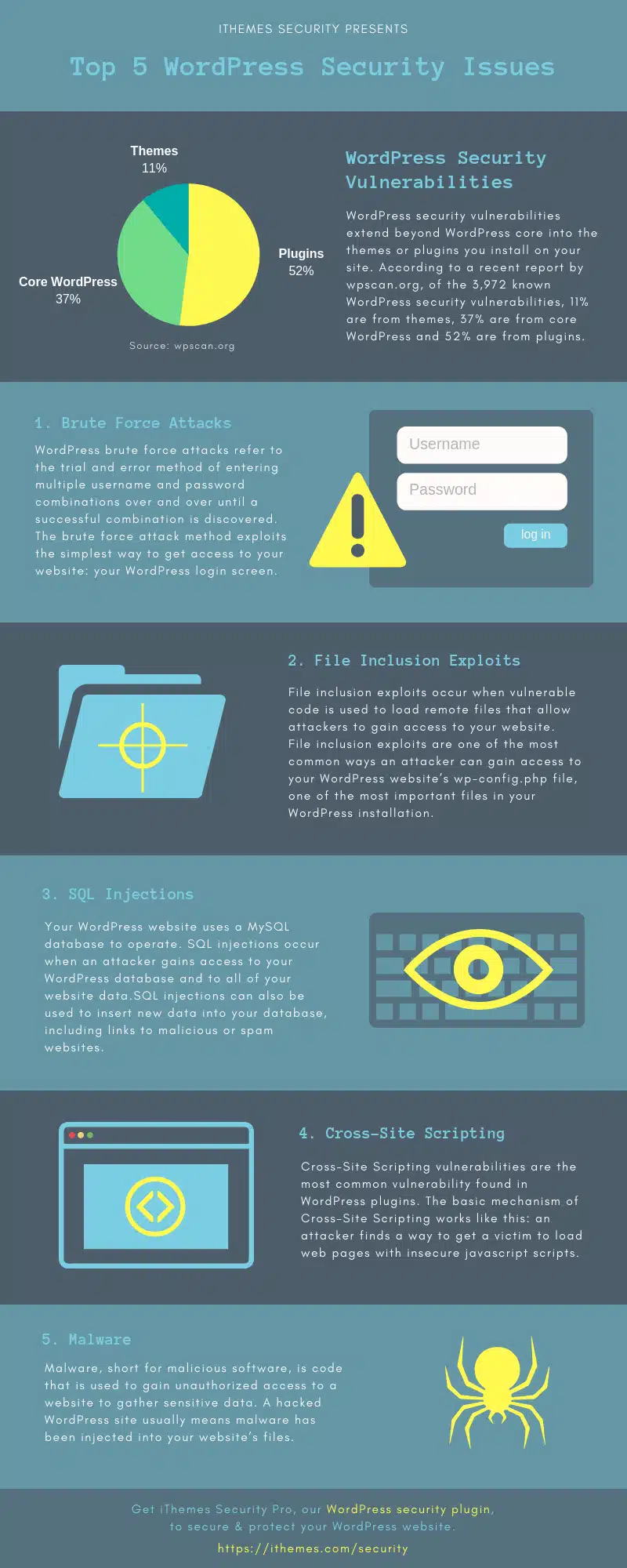
The widespread usage of WordPress makes it a prime target for malicious actors seeking to exploit vulnerabilities and compromise websites.
In this infographic, iThemes explore the top five WordPress security issues that website owners and administrators should be aware of. By understanding these vulnerabilities and implementing appropriate security measures, you can enhance the protection of your WordPress site and safeguard your valuable data.

Brute Force Attacks
Brute force attacks are one of the most common methods employed by hackers to gain unauthorized access to WordPress sites. In a brute force attack, automated scripts or bots systematically attempt various username and password combinations until they find the correct credentials. Weak or easily guessable passwords are particularly vulnerable to these attacks.
To protect your WordPress site from brute force attacks, consider implementing the following measures:
- Use strong passwords: Ensure that all user accounts, including administrators and contributors, have strong and unique passwords. A strong password should be lengthy, contain a combination of uppercase and lowercase letters, numbers, and special characters.
- Limit login attempts: Install a plugin that limits the number of login attempts from a specific IP address within a certain time frame. This can significantly reduce the effectiveness of brute force attacks.
- Two-factor authentication (2FA): Implementing 2FA adds an extra layer of security to your login process. By requiring users to provide a second form of verification, such as a unique code sent to their mobile device, you can mitigate the risk of unauthorized access.

File Inclusion Exploits
File inclusion exploits occur when an attacker manipulates a vulnerable WordPress site to include malicious files from external sources. This can lead to the execution of arbitrary code or unauthorized access to sensitive files, potentially compromising the entire system.
To protect against file inclusion exploits, follow these best practices:
- Keep WordPress and plugins up to date: Regularly update your WordPress installation and all installed plugins. Developers frequently release security patches to address vulnerabilities, and keeping your site up to date ensures that you benefit from these fixes.
- Be cautious with file uploads: Only allow trusted users to upload files to your site, and ensure that uploaded files are scanned for malware before they are made accessible to others. Restrict file upload permissions to specific directories to limit potential risks.
- Implement a Web Application Firewall (WAF): A WAF can detect and block attempts to exploit file inclusion vulnerabilities. It acts as a protective shield between your website and potential attackers, filtering out malicious requests.

SQL Injections
SQL injections occur when an attacker inserts malicious SQL code into a website’s database query, allowing them to manipulate the database and potentially gain unauthorized access or extract sensitive information.
To protect your WordPress site from SQL injections, consider the following measures:
- Use prepared statements: Utilize prepared statements or parameterized queries when interacting with the database. This practice ensures that user input is treated as data rather than executable code, effectively preventing SQL injection attacks.
- Validate and sanitize user input: Implement strict input validation and sanitization techniques to filter out potentially harmful data from user inputs. WordPress provides functions and APIs to assist with these tasks.
- Install a security plugin: Consider using a security plugin that includes features specifically designed to detect and block SQL injection attempts. These plugins can provide an additional layer of protection against common attack vectors.

Cross-Site Scripting (XSS)
Cross-Site Scripting is a vulnerability that allows attackers to inject malicious scripts into web pages viewed by other users. This can lead to the theft of sensitive information, unauthorized account access, and the spreading of malware.
To mitigate the risk of XSS attacks in WordPress, adopt the following preventive measures:
- Validate and sanitize user input: Similar to preventing SQL injections, validate and sanitize user input to remove any potentially malicious code. WordPress provides functions and libraries that assist with this process.
- Implement content security policy (CSP): CSP allows you to define a policy that specifies which sources of content are considered trusted. By properly configuring CSP headers, you can prevent the execution of malicious scripts.
- Use security plugins: There are numerous security plugins available for WordPress that offer features to detect and block XSS attacks. These plugins can automatically scan your site for vulnerabilities and provide recommendations for fixing them.
Malware
Malware refers to any software designed to damage or exploit a computer system. WordPress sites can become infected with malware through various means, including vulnerable plugins or themes, outdated software, or compromised file uploads.
To protect your WordPress site from malware infections, consider implementing the following practices:
- Regularly update WordPress, themes, and plugins: Keeping your WordPress core, themes, and plugins up to date ensures that you have the latest security patches and reduces the risk of vulnerabilities that malware can exploit.
- Use reputable themes and plugins: Stick to themes and plugins that come from reputable sources, as they are more likely to have undergone thorough security checks. Avoid downloading themes and plugins from unknown or untrusted websites.
- Install a malware scanner: Use a reliable malware scanner plugin to regularly scan your WordPress site for malicious code and infected files. These tools can identify and remove malware, providing an extra layer of security.

Brute force attacks involve relentless attempts to gain unauthorized access to your website by trying different username and password combinations. Fortunately, there are several effective measures you can take to protect your WordPress website from such attacks.
In this infographic, iThemes discuss five key strategies that can help you prevent brute force attacks and fortify your website’s security.
Use Strong Passwords
One of the most fundamental yet often overlooked aspects of website security is using strong passwords. Weak or easily guessable passwords provide attackers with an opportunity to exploit your website’s vulnerabilities.
When creating passwords, make sure they are at least 12 characters long and include a combination of uppercase and lowercase letters, numbers, and special characters.
Avoid using obvious choices like “password123” or personal information that can be easily guessed. It’s also recommended to use a reliable password manager to generate and store complex passwords securely.
Don’t Reuse Passwords
Reusing passwords across multiple platforms can amplify the risks associated with a brute force attack. If an attacker manages to obtain your login credentials from one website, they can try the same combination on other platforms, including your WordPress website.
To mitigate this risk, ensure that each of your online accounts, including your WordPress website, has a unique password. By adopting this practice, you prevent a security breach on one platform from compromising the security of others.
Don’t Use “admin” as Your Username
Many WordPress users make the mistake of using the default “admin” username during the installation process. This presents a significant advantage to potential attackers, as they already know half of the login credentials required for a successful brute force attack.
To protect your website, create a custom username during the WordPress installation or change the username if you are already using “admin.” By doing so, you make it much harder for attackers to target your website using automated brute force tools.
Limit Failed Login Attempts
By default, WordPress allows unlimited login attempts, making it easier for attackers to launch brute force attacks. To combat this, you should limit the number of failed login attempts a user can make within a specific time frame.
This can be achieved through various security plugins available for WordPress. By setting a reasonable limit, such as five failed attempts within 15 minutes, you effectively thwart automated attacks.
Additionally, consider implementing a temporary lockout period after a certain number of failed attempts to discourage further malicious activities.
Add Two-Factor Authentication
Implementing two-factor authentication (2FA) is an excellent way to enhance the security of your WordPress website. 2FA adds an extra layer of protection by requiring users to provide a second form of verification, typically a unique code generated on their smartphone or sent via SMS, in addition to their username and password.
Even if an attacker manages to obtain login credentials, they would still need access to the second factor to gain entry. Several WordPress plugins, such as Google Authenticator or Duo Two-Factor Authentication, make it easy to enable this robust security measure.

To ensure the security and integrity of your WordPress website, it is crucial to monitor the security logs regularly. Security logs provide valuable information about potential threats and suspicious activities, allowing you to take proactive measures to protect your site.
In this infographic, iThemes explore four important events to monitor in WordPress security logs: brute force attacks, file changes, malware scans, and user activity.
Brute Force Attacks
Brute force attacks are one of the most common types of attacks targeting WordPress websites. In a brute force attack, hackers use automated tools to systematically try different combinations of usernames and passwords until they find the correct credentials to gain unauthorized access.
Monitoring security logs for brute force attacks can help you identify patterns, such as repeated login attempts from the same IP address or a high number of failed login attempts within a short period. To effectively monitor brute force attacks, look for entries in the security logs that indicate failed login attempts, particularly those originating from suspicious IP addresses or unusual login patterns.
Additionally, consider implementing security measures such as limiting login attempts, using strong passwords, and implementing two-factor authentication to mitigate the risk of brute force attacks.

File Changes
Unauthorized file changes can compromise the integrity and functionality of your WordPress site. Monitoring file changes in security logs allows you to detect any unauthorized modifications and take prompt action to address potential security vulnerabilities.
Hackers may attempt to modify core WordPress files, theme files, or plugin files to inject malicious code or gain unauthorized access. Keep a close eye on security logs for any entries related to file modifications, deletions, or additions. Pay special attention to critical files such as wp-config.php, .htaccess, and files within the wp-admin and wp-includes directories.
If you notice any suspicious file changes, investigate further and restore the affected files from a trusted backup. Regularly updating WordPress, themes, and plugins to their latest versions can also help prevent file-related security issues.
Malware Scans
Malware can wreak havoc on your WordPress site, compromising its security, performance, and reputation. Monitoring malware scans in your security logs is essential for identifying and removing malicious code or files.
Malware scans should be performed regularly using reputable security plugins or online scanning tools. When reviewing the security logs for malware scans, look for entries indicating the detection of suspicious files, malware signatures, or indications of malware activity.
If malware is detected, isolate the infected files, remove the malicious code, and strengthen your site’s security by updating plugins, themes, and WordPress to the latest versions. It is also advisable to implement a web application firewall (WAF) and use a reputable security plugin to enhance your site’s defence against malware.

User Activity
Monitoring user activity in your WordPress security logs is crucial for detecting suspicious behaviour, identifying potential security breaches, and preventing unauthorized access.
User activity logs provide insights into actions such as login attempts, changes to user roles and permissions, and any other activity that may indicate a security concern. Regularly review the security logs for any anomalies or suspicious user activities.
Look for unusual login patterns, unexpected changes in user roles, or unauthorized access attempts. If you identify any suspicious activity, promptly investigate and take appropriate actions such as resetting compromised passwords, revoking unauthorized user access, or temporarily suspending suspicious accounts.

While WordPress is known for its security measures, no platform is entirely immune to hacking attempts. As a website owner, it’s crucial to be vigilant and watch for signs of a potential security breach.
In this infographic, iThemes discuss seven key signs that may indicate your WordPress site has been hacked. By being aware of these indicators, you can take immediate action to safeguard your website and its visitors.

Your Homepage is Different
One of the most obvious signs of a hacked WordPress site is when your homepage looks different than how you left it. Hackers often deface websites by replacing the original content with malicious or irrelevant information.
If you notice unfamiliar images, text, or layout changes on your homepage, it’s essential to investigate further. Comparing your current homepage with a backup or cached version can help you identify any unauthorized modifications.

Your Website Performance Has Dropped
A sudden decrease in website performance can be indicative of a hacking incident. If your WordPress site takes longer to load, experiences frequent downtime, or shows unusual error messages, it may be a sign that unauthorized activities are occurring in the background.
Hackers often exploit vulnerabilities to inject malicious code or overload your server resources, resulting in decreased performance. Regularly monitoring your website’s performance metrics can help you detect any anomalies and take timely action.

Your Site Contains Malicious or Spam Popup Ads
If you start seeing unexpected popup ads or notice an excessive amount of advertisements on your website, it’s likely that your WordPress site has been compromised. Hackers may inject malicious code into your site’s files or plugins, which can result in the display of unauthorized advertisements or redirect users to malicious websites.
These ads are not only disruptive to your visitors but can also harm your website’s reputation. Regularly scanning your site for malware and checking your codebase for any suspicious additions is crucial to maintain a clean and secure website.

You Notice a Decrease in Website Traffic
A sudden and significant decrease in website traffic can be a sign of a hacked WordPress site. Hackers may manipulate your website’s search engine optimization (SEO) settings to redirect traffic to their own websites or engage in blackhat SEO techniques that harm your site’s visibility in search results.
Monitoring your website analytics regularly and keeping an eye on traffic fluctuations can help you identify any abnormal patterns and take the necessary steps to mitigate the issue.
Unexpected File Changes
If you come across unexpected file changes in your WordPress installation, it could be a red flag for a security breach. Hackers may modify or add files, such as injecting malicious scripts into your theme files, uploading unauthorized plugins, or altering critical system files.
Regularly comparing file versions, monitoring file integrity, and utilizing file change detection tools can help you identify unauthorized modifications promptly.

Unexpected New Admin Users
Discovering unfamiliar administrator accounts in your WordPress site’s user list is a clear indication of a security compromise. Hackers often create new admin users to gain full control over your site.
These unauthorized users can wreak havoc by manipulating your content, installing malicious software, or compromising your site’s security further. Regularly reviewing and auditing your user accounts, removing any unnecessary or suspicious ones, and enforcing strong password policies can help prevent unauthorized access to your site.

Admin Users Removed
On the flip side, if you suddenly find that legitimate admin users are missing from your WordPress site, it could be a sign of a hack. Hackers may target and remove existing admin accounts to eliminate any potential obstacles in their path.
Losing access to your own website can be devastating, and it requires immediate action to regain control. Regularly monitoring your user accounts and keeping backup admin credentials stored securely can help mitigate the impact of such an incident.

Conclusion
Detecting a hacked WordPress site is crucial to minimize potential damage and protect your online presence. By staying vigilant and being aware of these seven signs, you can quickly identify a security breach and take immediate action to restore your website’s integrity.
Regularly updating your WordPress core, themes, and plugins, using strong passwords, implementing security plugins, and performing regular backups are essential practices to prevent and recover from hacks.
Remember, maintaining the security of your WordPress site is an ongoing effort that requires constant monitoring and proactive measures to keep hackers at bay.

Author:
Mark Ford